


Automation Platform Migration Without Breakage
How to move workflows from one automation tool to another: inventory, mapping, parallel runs, cutover and retiring the old tool.
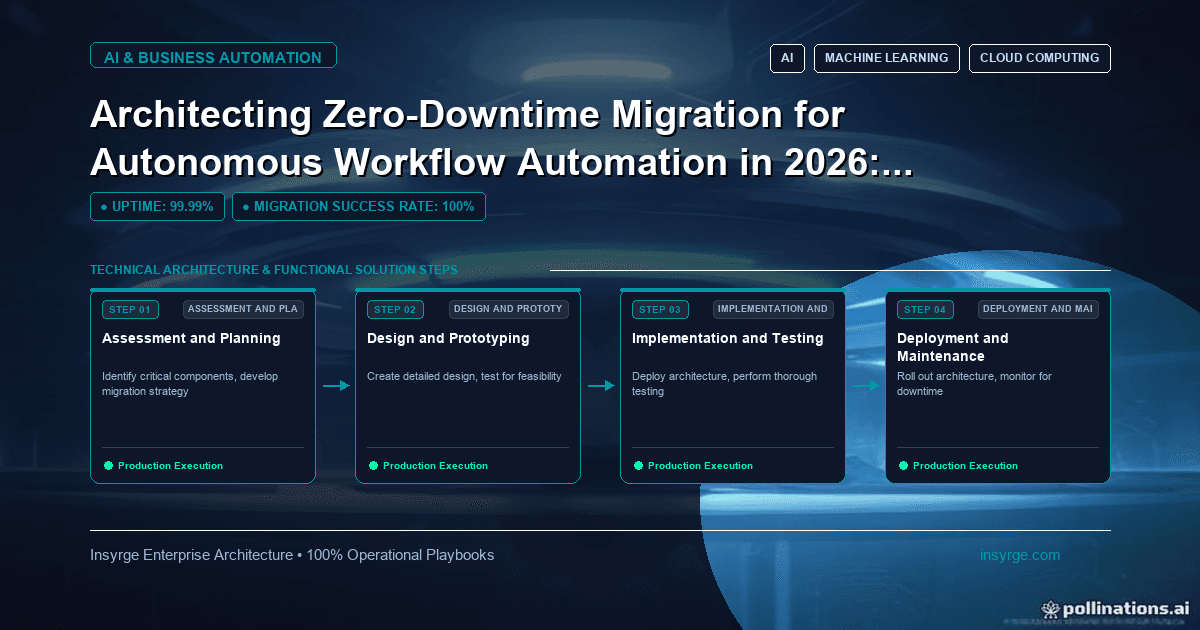
Plan an automation platform migration that keeps work running: inventory every workflow, map features, rebuild, run in parallel and cut over in stages.
Businesses switch automation platforms for many reasons: costs rise as usage grows, a tool cannot handle more complex logic, security requirements change, or the company standardises on a different suite. Whatever the reason, moving dozens or hundreds of running workflows is risky. A missed trigger can stop invoices, duplicate customer emails or leave leads unassigned. An automation platform migration needs the same care as any system migration: a full inventory, careful mapping, testing, a parallel run and a staged cutover. This guide explains how to plan and run the move so processes keep working throughout and the old platform can be switched off with confidence.
 Why automation migrations are risky
Automations are easy to forget because they run in the background. Several things make moving them risky:
- Nobody has a complete list of what is running
- Workflows depend on each other in ways that are not documented
- Credentials and connections are tied to individual people
- Platforms handle triggers, errors and data formats differently
- Some workflows run rarely, such as monthly or yearly, and are easy to miss
A careful plan addresses each of these before the first workflow moves, and it gives owners a clear view of when their processes will change.
Start with a complete inventory
List every workflow on the current platform. For each, record its name, purpose, trigger, connected systems, owner, how often it runs, how critical it is and when it last ran. Most platforms let you export or list workflows and their run history; use that rather than relying on memory.
Pay special attention to workflows that run rarely, such as quarter-end reports or annual renewals. Check run history over at least a full year if possible. Our guide to a CRM workflow audit describes a similar inventory process for workflows inside a CRM.
Decide what to move, change or retire
Migration is a good time to clean up. For each workflow, decide whether to:
- Move it as it is
- Improve it during the move, for example by adding error handling
- Merge it with similar workflows
- Retire it because it is no longer needed
Retiring unused workflows reduces migration effort and future maintenance. Confirm with owners before retiring anything.
Map features between platforms
Platforms differ in how they handle triggers, data mapping, loops, waits, errors and connections. Compare the features each workflow uses with what the new platform offers:
- Are the same triggers available, such as instant webhooks or scheduled polling?
- Does the new platform connect to every system you need?
- How are errors, retries and alerts handled?
- Are there limits on runs, steps or data volumes?
- How are credentials stored and shared?
Workflows that rely on features the new platform lacks need redesign, custom code or a different approach. Our guide to Zapier vs custom API integration discusses when a platform is the right fit and when custom integration is better.
Worked example: an automation platform migration plan
The table below shows a hypothetical plan for migrating 40 workflows. Groupings and durations are illustrative.
WaveWorkflowsCriticalityApproachParallel runCutover checkRetire8 unused or duplicateNoneConfirm with owners, then switch offNot neededNo complaints after 2 weeksWave 112 internal notifications and tasksLowRebuild as is1 weekOutputs match on sampleWave 210 CRM updates and data syncsMediumRebuild with improved error handling2 weeks, new platform in log-only modeRecord counts and fields matchWave 37 customer emails and billing stepsHighRebuild, peer review, sandbox test2 weeks, compare outputs without sendingOwner sign-offWave 43 rare workflows (monthly or yearly)MediumRebuild and test with sample dataRun at next scheduled date with monitoringOwner confirms output
Starting with low-risk workflows builds experience before tackling critical ones, and the retire wave reduces the workload at the start.
Handle data format differences
Platforms often represent the same data differently. Dates may arrive in different formats or time zones, numbers may be strings, empty fields may be treated as nulls or blanks, and lists may be split differently. Small differences like these cause many post-migration problems. Test each workflow with real examples that include unusual values, such as names with accents, very long text, empty optional fields and dates near month-end, and compare the results with the old platform.
Set up connections and credentials properly
Create connections on the new platform using service accounts or integration users rather than personal logins. Give each connection only the access it needs. This is also a chance to fix credentials that were tied to people who have left or to shared passwords.
Run in parallel safely
Running old and new workflows at the same time is the best way to check the new version, but it can cause duplicate actions. Avoid this by:
- Running the new workflow in a log-only or test mode that records what it would do without doing it
- Comparing outputs between old and new for the same inputs
- Using test records or a sandbox where available
- Making actions idempotent, so repeated runs do not create duplicates
Cut over in stages
Switch workflows over in waves rather than all at once. For each wave:
- Confirm parallel run results match
- Switch off the old workflow and switch on the new one at a quiet time
- Monitor closely for the first runs
- Keep the old workflow available, but disabled, for quick rollback
Communicate cutover dates to workflow owners so they can watch for problems.
Watch the first weeks closely
After cutover, monitor run counts, errors and business outcomes, such as leads assigned or invoices sent. Compare with the same period before migration. Problems often appear with unusual data or at month-end, so keep monitoring through at least one full business cycle.
Switch off the old platform
Once all workflows have run successfully for an agreed period, including rare ones, decommission the old platform. Export workflow definitions and run history for reference, revoke its credentials, remove its connections from other systems and cancel the subscription.
Document the new set-up
Update the inventory with new locations, owners and connections. Record any design changes made during migration. Good documentation makes the next change, or the next migration, much easier.
Frequently Asked Questions
How do you migrate workflows between automation platforms?
Inventory every workflow, decide what to move or retire, map features, rebuild, run new versions in parallel without duplicate actions, then cut over in waves with rollback ready.
How do you avoid duplicate actions during a parallel run?
Run the new workflow in log-only or test mode, use test records or a sandbox, and design actions to be idempotent.
What workflows are most often missed in a migration?
Rarely run workflows, such as monthly, quarterly or annual processes, and workflows that depend on others without documentation.
When can the old automation platform be switched off?
After every workflow, including rare ones, has run successfully on the new platform for an agreed period, and history and definitions have been exported.
Move your automations without disruption
We inventory workflows, map features, rebuild and test automations, and manage staged cutovers to new platforms. See our AI automation solutions, or talk to us about an automation platform migration.
About the Author
Manav Sharma is the founder of Insyrge and a CRM solutions architect. He works across Zoho, Salesforce, HubSpot, Odoo and more, designing the CRM setups, integrations and automations that keep sales and operations teams working from the same data.
Need Help Implementing This in Your Business?
Our certified Zoho consultants and automation experts can help you design and deploy custom workflows tailored to your operations.
Book Free Consultation