


Zoho CRM Integration Troubleshooting Guide
A step-by-step method for diagnosing integration failures, reading Zoho error codes, repairing data and preventing repeats.
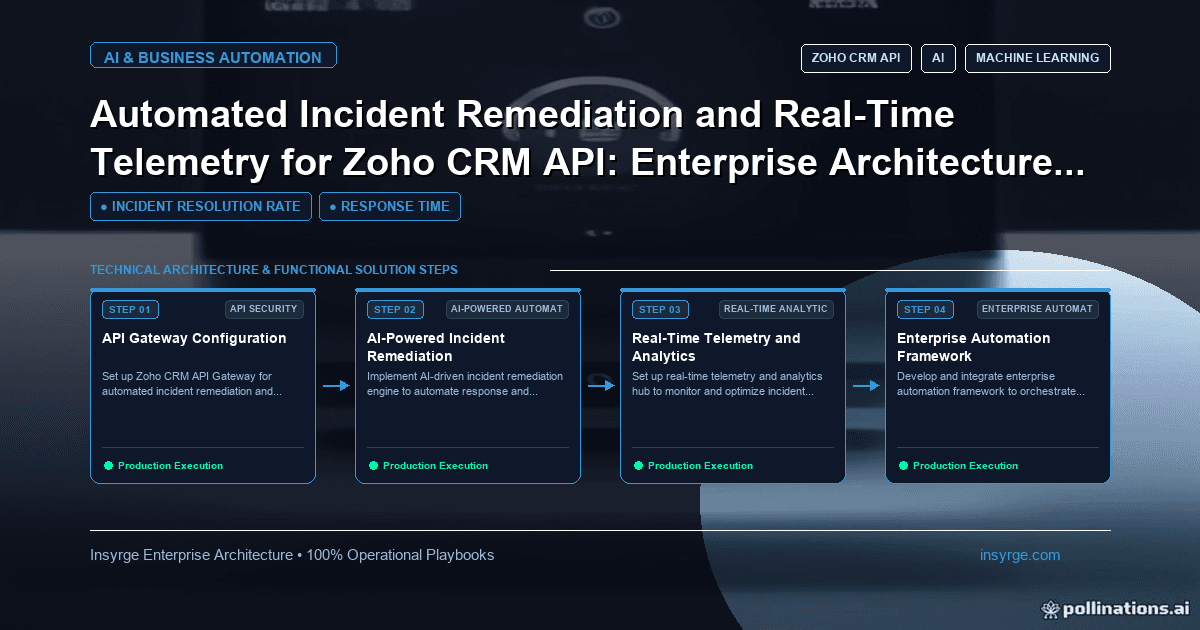
Speed up Zoho CRM integration troubleshooting with a clear method: read error codes, check logs, classify the failure, repair data, prevent repeats.
When an integration with Zoho CRM goes wrong, the first report rarely says so. It says a sales rep cannot see an invoice, a lead never arrived, or a report total looks odd. Whoever investigates then has to work out which integration is involved, what went wrong, how many records are affected and how to put them right, often under pressure. Zoho CRM integration troubleshooting goes far faster with a clear method and the right information to hand: logs that show what happened, a map of which integration touches which data, and a runbook for the common failures. This guide sets out a step-by-step approach, explains how to read Zoho's error responses, lists the usual causes and their fixes, and covers how to repair data and prevent repeats.
 Before anything breaks: what you need
Troubleshooting is only as good as the information available. Put these in place in advance:
- An inventory of integrations, listing the modules and fields each one reads and writes
- Logs that record each request, its response code and message, the record IDs involved and a timestamp
- A way to see queued, failed and retried items for each integration
- Monitoring that alerts on error spikes, stalled queues and missing scheduled runs
- A runbook with known failure types and their fixes
Our guide to Zoho CRM integration monitoring covers the alerts that tell you about problems before users do.
A step-by-step method for Zoho CRM integration troubleshooting
Work through the same steps each time:
- Define the symptom precisely: which record, which field, what was expected, what happened, and when
- Identify the integration: use the inventory to find which integrations write that module and field
- Check the logs for that record and time: was a request made, and what was the response?
- Classify the failure: authentication, permissions, validation, limits, mapping, timing or the other system
- Find the scope: how many records are affected, since when?
- Fix the cause, then repair the affected data
- Record what happened and what will prevent a repeat
Resist the urge to fix the one record a user reported and move on. If one record failed, others usually did too.
Reading Zoho's error responses
Zoho's status codes documentation explains the HTTP codes its API returns. A few matter most when troubleshooting:
- 207 Multi-Status: the request was partially successful, so some records in a batch succeeded and others failed; read the result for each record
- 400 Bad Request: the request or its data was invalid, such as a missing mandatory field or an invalid ID; the response details usually name the field
- 401: an authorization error, typically an expired, revoked or invalid token
- 403: no permission for the operation, often because the integration user's profile or scopes do not allow it
- 429 Too Many Requests: the 24-hour request limit or the concurrency limit has been exceeded
Log the full error body, not just the status code. The details, such as which field failed validation, save a great deal of time.
Common causes and fixes
Most incidents fall into a few patterns:
SymptomLikely causeCheckFixAll requests failing with 401Token expired or revokedToken refresh logs; recent password or user changesReauthorise; move integration to a dedicated userSome records rejected with 400New mandatory field or changed picklistRecent CRM configuration changesUpdate mapping; reprocess rejected recordsRequests failing with 403Profile or scope changedIntegration user's profile and token scopesRestore required permissions onlyIntermittent 429 errorsLimits exceeded by a bulk job or new integrationAPI usage around the failure timesReschedule heavy jobs; add backoff; consider more creditsRecords missing, no errors loggedWebhook subscription lapsed or job not runningEvent counts and scheduler historyRe-subscribe; restart scheduler; reconcile missed recordsValues overwrittenTwo integrations writing the same fieldInventory and logs for that fieldAssign one owner per fieldDuplicates appearingRetries without upsert or external IDsMatching logic and retry logsSwitch to upsert on a unique field; merge duplicates
Repairing affected data
Once the cause is fixed, put the data right:
- List affected records from logs or by comparing with the source system
- Reprocess failed items from the queue or dead letter queue, now that the cause is fixed
- Correct overwritten values from the source system or a recent export
- Merge duplicates created during the incident
- Tell the people who rely on the data what happened and what was corrected
Reprocessing is only safe if processing is idempotent, so the same message produces the same result however many times it runs. Our guide to webhook dead letter queues covers how to replay failed events safely.
Worked example: invoices missing from the CRM
Suppose finance reports that invoices created on Tuesday afternoon are missing from Zoho CRM. The integration team follows the method: the inventory shows one accounting integration writes invoices; the logs show 400 errors from Tuesday at 2 p.m. naming a field; the CRM audit log shows an administrator made a new invoice field mandatory at 1.55 p.m. The scope is every invoice since then. The team updates the mapping to fill the new field from the accounting system, reprocesses the failed invoices from the review queue, confirms counts match the accounting system, and agrees that integrated modules will have configuration changes checked against the mapping document first. This illustration shows how logs and an inventory turn a vague report into a quick fix.
Preventing repeats
Every incident should leave the system stronger:
- Add an alert for the failure, if none fired
- Add a test that reproduces it
- Update the runbook with the symptom, cause and fix
- Address the root cause, such as a change process for integrated fields
- Review incidents monthly to spot patterns, such as the same integration failing after every CRM release
- Share a short summary with the business owners of affected processes
Common mistakes
- Fixing the reported record and ignoring the others affected
- Logging status codes without the error details
- No inventory, so nobody knows which integration writes a field
- Reprocessing failed items before fixing the cause
- Retrying in a tight loop on 429 responses
- Changing configuration of integrated modules without checking the mapping
Frequently Asked Questions
How do you troubleshoot a Zoho CRM integration?
Define the symptom, identify the integration, check the logs, classify the failure, find the scope, fix the cause, repair the data and record lessons.
What does HTTP 429 mean in Zoho CRM?
According to Zoho's documentation, the request limit for the 24-hour period or the concurrency limit has been exceeded. Back off and retry later.
Why would records fail after a CRM change?
New mandatory fields, changed picklist values or altered permissions can make previously valid requests fail. Check recent configuration changes against the mapping.
How do you fix data after an integration failure?
List affected records, reprocess failed items once the cause is fixed, correct overwritten values from the source, merge duplicates and inform data owners.
Get integrations back on track fast
We troubleshoot, repair and harden Zoho CRM integrations, and set up the logs and runbooks that make the next fix quicker. See our CRM and API integration services, or talk to us about your integration issue.
About the Author
Manav Sharma is the founder of Insyrge and a CRM solutions architect. He works across Zoho, Salesforce, HubSpot, Odoo and more, designing the CRM setups, integrations and automations that keep sales and operations teams working from the same data.
Need Help Implementing This in Your Business?
Our certified Zoho consultants and automation experts can help you design and deploy custom workflows tailored to your operations.
Book Free Consultation